Enrollment forms
Enrollment forms are a way to distribute passes to customers who are already in your Actito database. Instead of issuing passes individually through a campaign, an enrollment form generates a public link and a QR code that your customers can use to self-identify and claim their own personalised pass — at any time, from any channel.
A typical use case: you display the QR code in your store. A customer scans it, enters their identifier (e.g. their email address or loyalty card number), and is immediately redirected to a page where they can add their pass to Apple Wallet or Google Wallet.
To access enrollment forms, go to Hub > Wallet > Enrollment Forms.

Creating an enrollment form
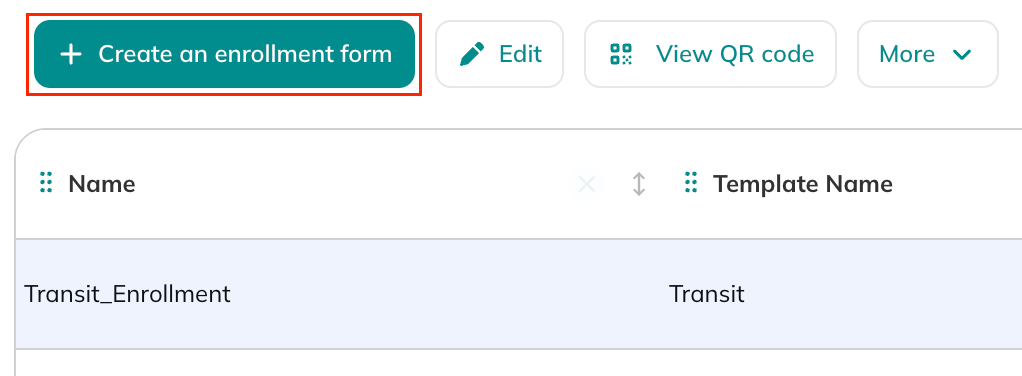
Click on Create an enrollment form to open the creation form.
You will have to defines several fields.
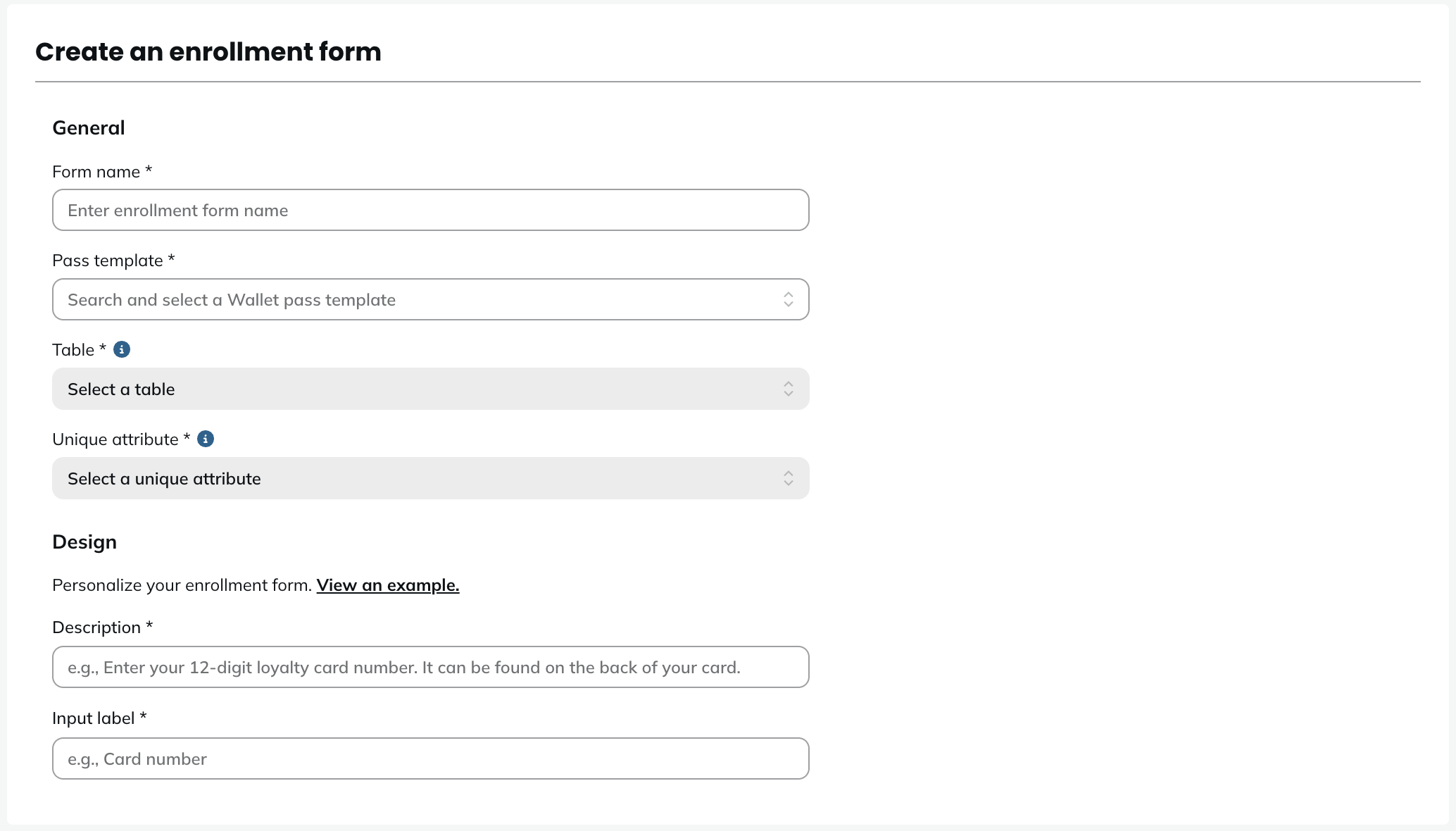
General fields
| Field | Description |
|---|---|
| Form name | The internal name of your enrollment form. Only visible to you and your team in the dashboard. |
| Pass template | The pass template that will be used to generate the pass when a customer completes the form. The template must have been created and saved beforehand. |
| Table | The table in which the profile's identifier will be looked up. This can be any table from your data model. |
| Unique attribute | The attribute used to identify the customer in the selected table (e.g. emailAddress, cardNumber, fidelityNumber). This is the value the profile will be asked to enter in the form. |
Design fields
This section controls what the customer sees when they open the enrollment form.
| Field | Description |
|---|---|
| Description | A short instruction displayed above the input field, explaining what the customer should enter (e.g. Enter your 12-digit loyalty card number. It can be found on the back of your card.). |
| Input label | The label displayed above the input field (e.g. Card number, Email address). |
Be as specific as possible in your description as it directly impacts form completion rates. Tell your customers exactly where to find the value you are asking for.
QR Code and link
Once the enrollment form is saved, Actito automatically generates a QR code and a unique link for that form.
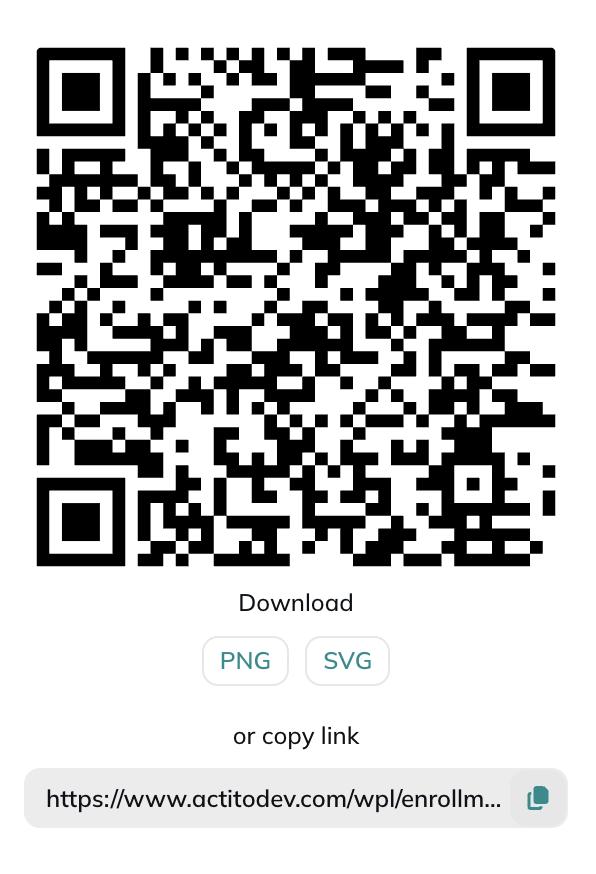
You can:
- Download the QR code as a PNG or SVG file, to print and display in-store, at an event, or on any physical medium.
- Copy the link, to embed in your communications, app, website, or any digital channel.
Both the QR code and the link point to the same enrollment form and can be used interchangeably.
Client enrollment
When a customer scans the QR code or clicks the link, they are taken to a branded enrollment page hosted by Actito.
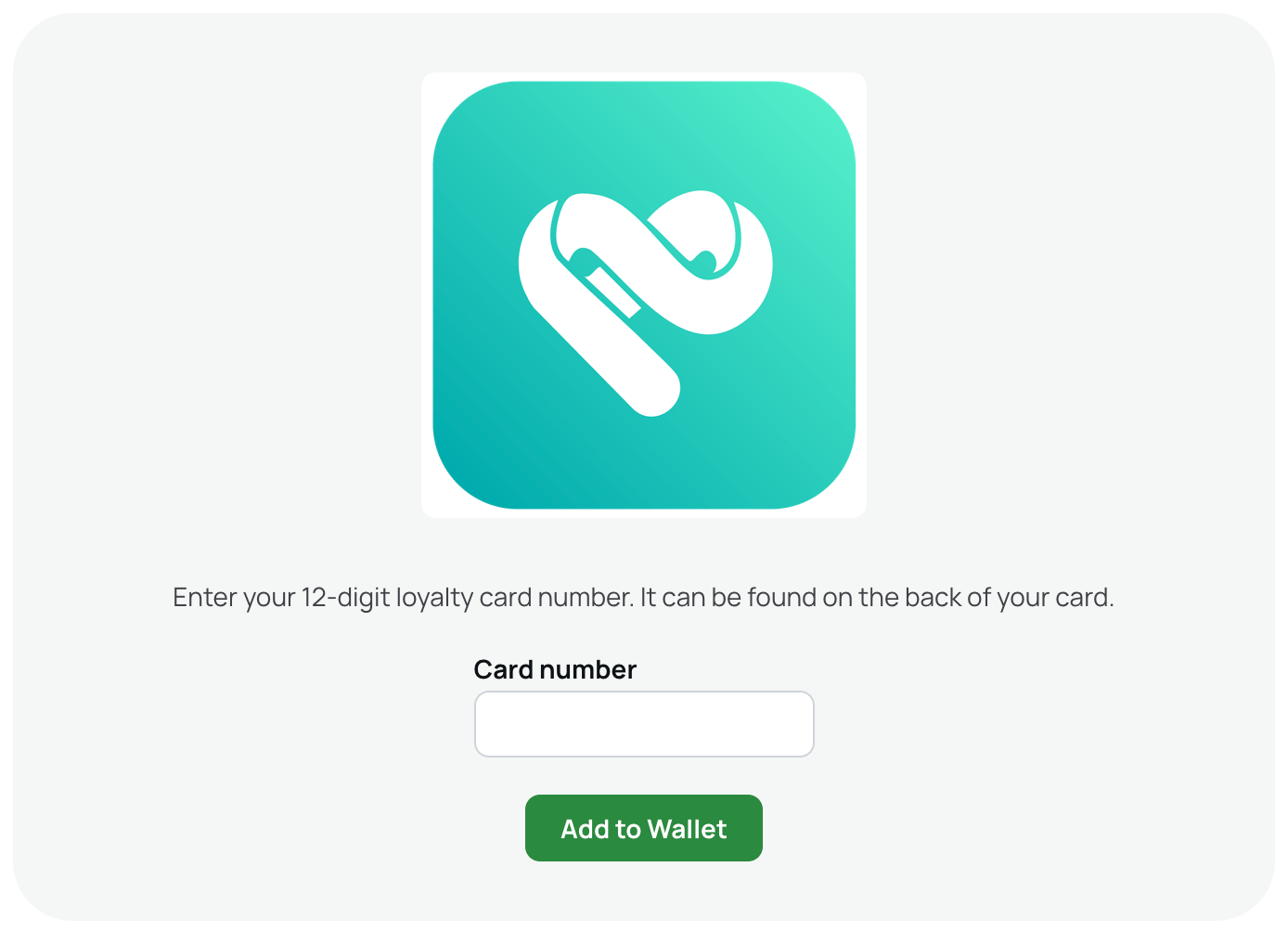
They are asked to enter the value corresponding to the unique attribute you configured (e.g. their email address). Actito then looks up the matching profile in the selected table. The customer must already exist in your database. If a match is found, a personalised pass is generated based on the linked template.
For customers you already know, you can pre-fill the identifier by adding it to the enrollment link as an identifier parameter. The page then opens with the input field already filled, so the customer only has to confirm and claim their pass instead of typing anything.
This is especially helpful when the customer is already identified, for example logged in on your website: build the link with their known value so they go straight to claiming their pass, for example https://<your-enrollment-link>?identifier=123456.
The customer is then redirected to a confirmation page showing two QR codes — one for Apple Wallet and one for Google Wallet — along with the corresponding download buttons.
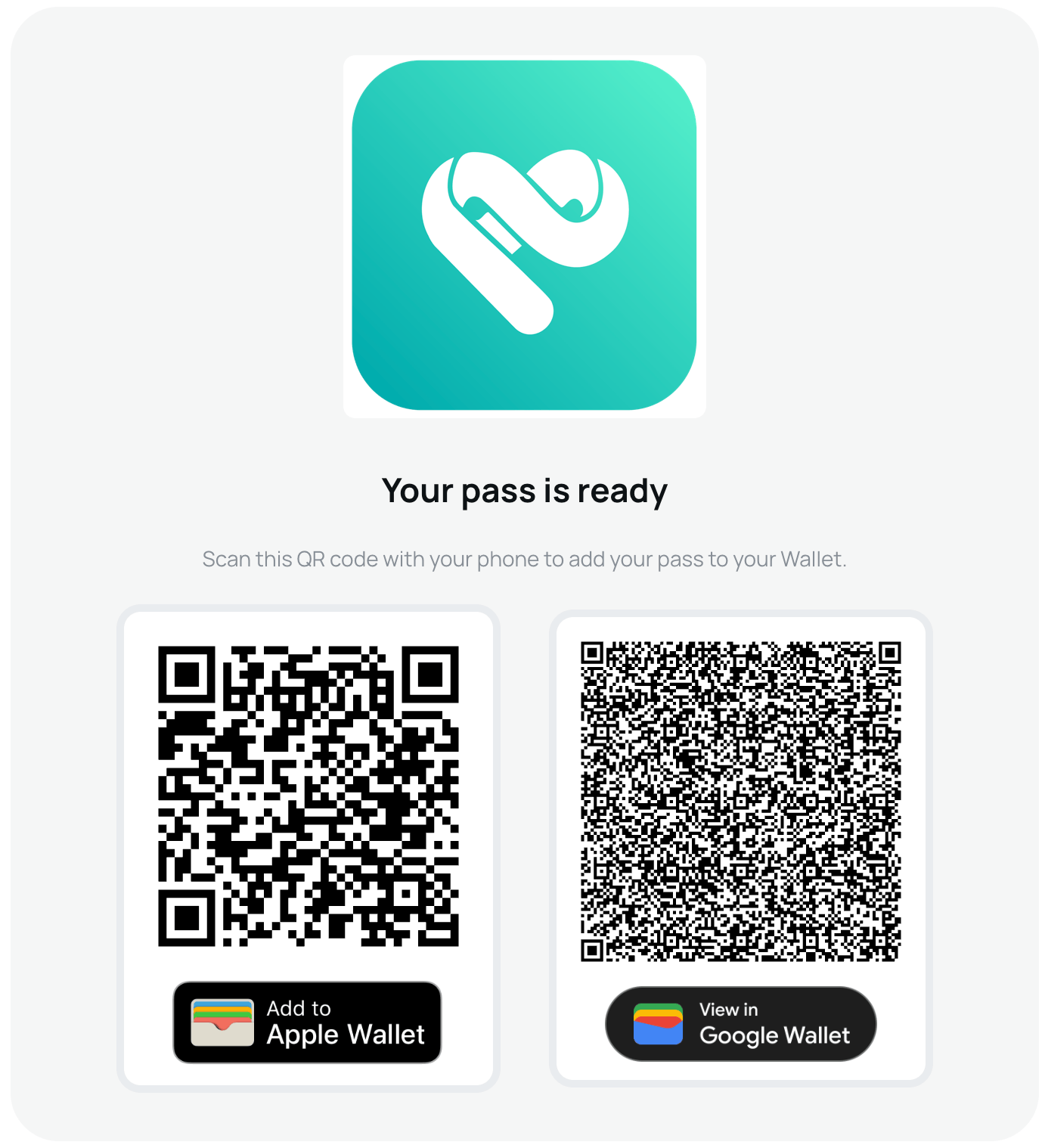
The customer scans the QR code matching their device, or taps the button directly, and the pass is added to their wallet immediately.
The enrollment form automatically detects the customer's operating system and presents the appropriate wallet option. Both options are always displayed so the customer can choose.
Managing enrollment forms
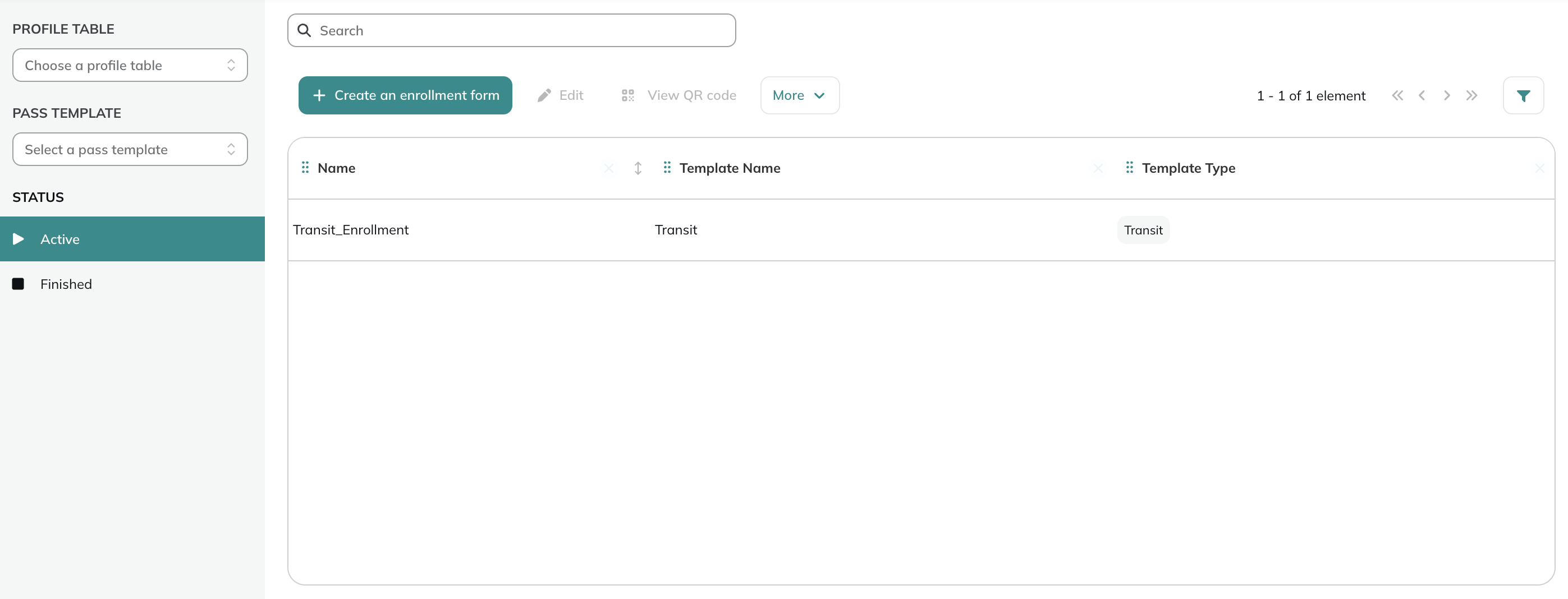
From the Enrollment Forms module, you have an overview of all your enrollment forms, with their name, linked pass template, and template type.
Filters
On the left side of the screen, you can filter the list by:
- Profile table: show only forms linked to a specific table
- Pass template: show only forms linked to a specific template
- Status: Active (the form is live and accepting enrollments) or Finished (the form has been closed)
Actions
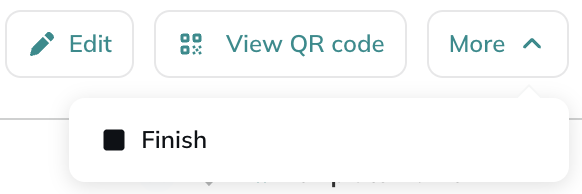
Select a form in the list to access the following actions:
- Edit: opens the enrollment form and allows you to modify its name, description, and input label.
- View QR code: opens a modal displaying the QR code and the enrollment link for that form. From here you can:
- Download the QR code as PNG or SVG
- Copy the enrollment link
- More > Finish: closes the enrollment form permanently. The link and QR code will immediately stop working. Make sure you no longer need the form before using this action. For example, remove the QR code from any physical or digital locations where it is still displayed.
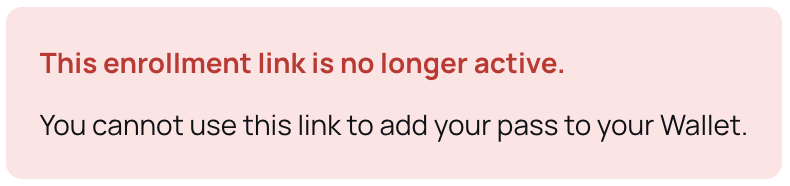
Once finished, the link and QR code are deactivated and customers who try to access the form will see the following message: