Loyalty
The Loyalty pass turns your membership cards and rewards programmes into a live, always-updated pass in Apple Wallet and Google Wallet. Points balances, tier statuses, and member details update in real time — without requiring your customers to open an app.
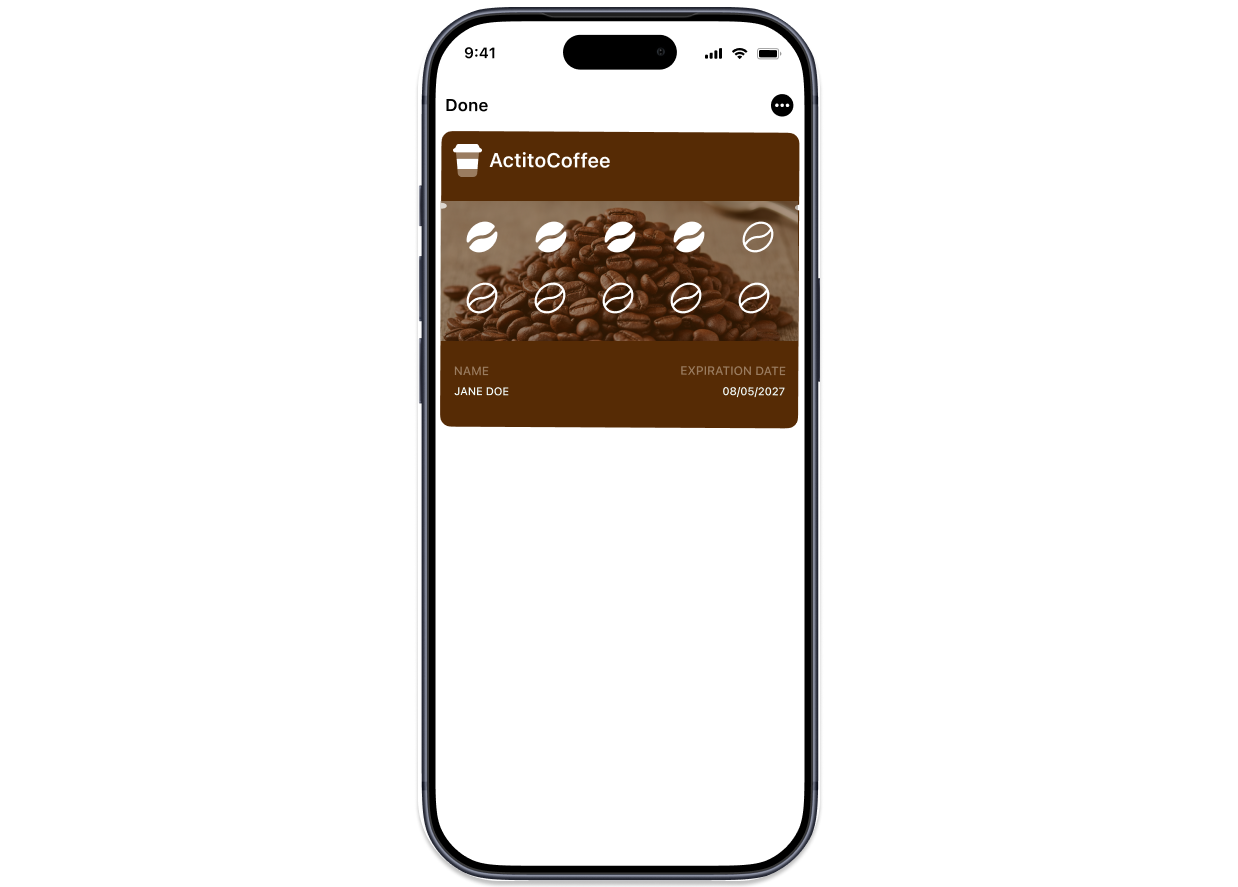
To create a new Loyalty pass template, go to the "Pass templates" module (Hub > Wallet > Pass templates).

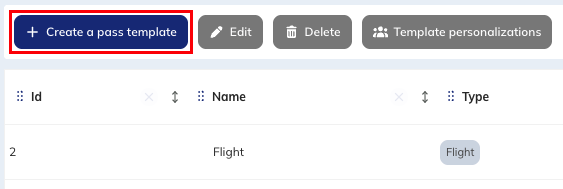
Click on the Create a pass template button.
Once your template is created, you will need to define template personalizations from the Manage pass templates module.
One template must be created per loyalty programme or membership type. If you operate multiple programmes, create one template per programme.
Step 1 - Setup
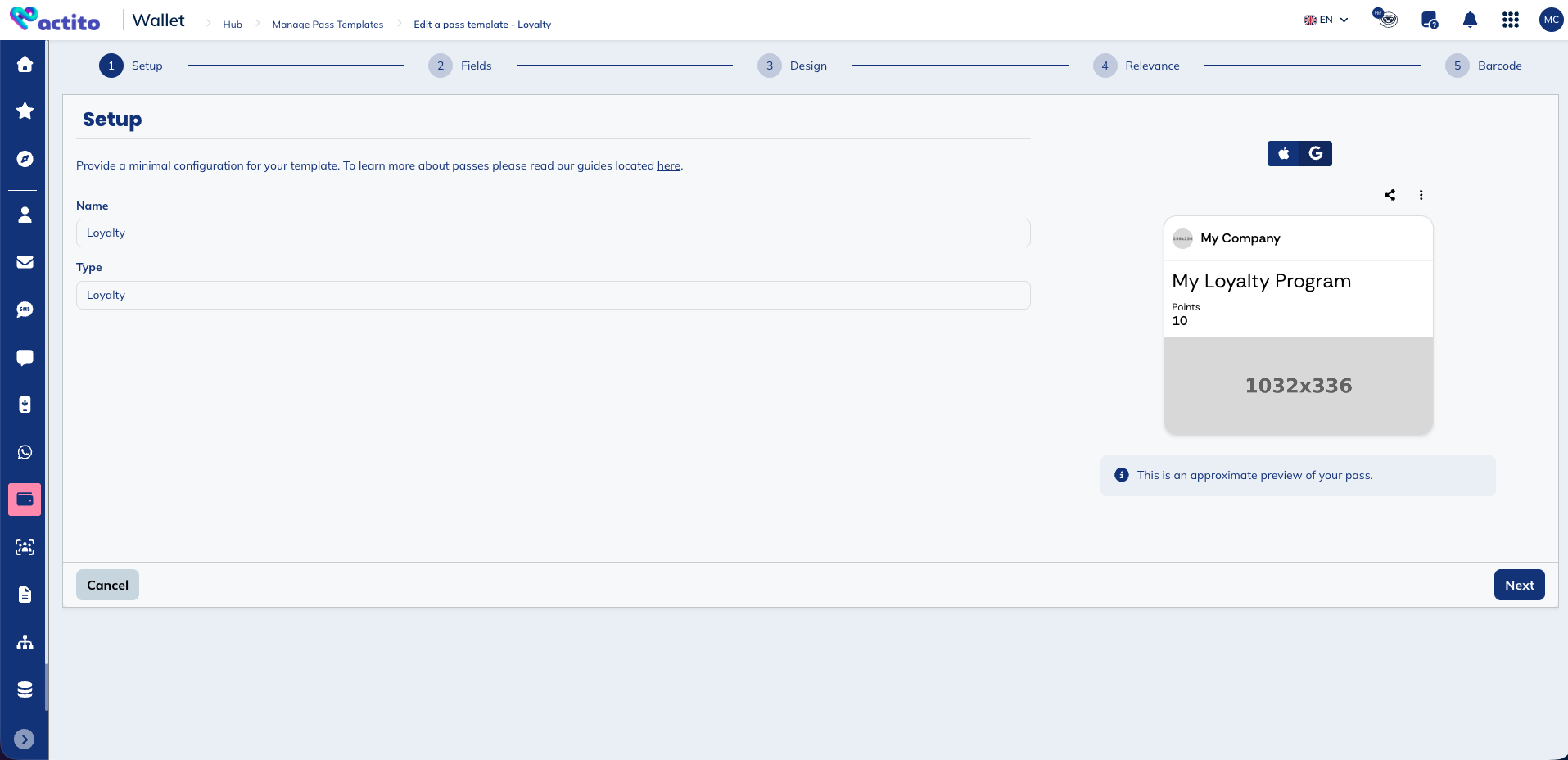
This first step enables you to define the basic information of your template:
- Name: the internal name of your template. This is only visible to you and your team in your licence. We recommend using a clear naming convention.
- Type: the type of your pass template. This determines the visual layout and available fields for this template.
Your template name is what appears in your pass list and reporting. If you plan to issue passes for multiple programmes, include the programme name from the start.
Step 2 - Fields
Fields are the data that populate your passes. Every field you want to display or use, whether fixed or personalised, must be defined here first.
There are two types of fields:
- Common fields: the value is fixed and identical for all passes generated from this template. It cannot be changed at pass creation. Use these for programme-level data that is the same for every member: programme name, issuer name, background colour.
- Pass fields: the value can be overridden at pass creation. The value defined here is the default, used if no other value is provided. Use these for member-level data: account name, account ID, points balance.
You will have to add all fields you will be using in your pass template. These fields may then be included in your passes and ultimately define what data is displayed to users. In step 3, you will define where these fields will be displayed on the pass.
The fields that need to be personalised based on profile attributes will need to be configured in the template personalizations.
You may notice that some fields appear in both Common fields and Pass fields — for example, backgroundColor. This is intentional: Apple Wallet allows certain properties to be personalised at the individual pass level, meaning each issued pass can have its own value. Google Wallet, however, does not support this level of personalisation for those same properties and requires a single value shared across all passes. If you are issuing passes for both platforms, defining the field in both sections ensures maximum flexibility.
Common fields
Common fields define the programme-level data shared across all passes generated from this template.
Common fields are shared across all passes generated from this template. Their values can only be edited by updating the template directly. Note that changes to common fields will only apply to newly created passes. Existing passes can only be updated through an update campaign.
| Key | Type | Description |
|---|---|---|
programName | String | The name of the loyalty programme (e.g. My Loyalty Program). Displayed prominently on the pass. |
programLogo | Image | The programme or brand logo displayed on the pass. Recommended size: 256×256 px. Use a PNG with a transparent background. |
issuerName | String | The name of the organisation issuing the pass (e.g. My Company). Displayed on the pass and used by screen readers. |
hexBackgroundColor | Color | The background colour of the pass in hexadecimal format (e.g. #FFFFFF). |
Pass fields
Pass fields control the visual appearance of the pass and the personalised data displayed for each individual member.
Unlike common fields, these fields are reserved for any properties that contain unique details of a specific pass issued to a specific user. These fields may be changed whenever you create or update a specific pass.
| Key | Type | Description |
|---|---|---|
backgroundColor | Color | The background colour of the pass in hexadecimal format (e.g. #FFFFFF). |
foregroundColor | Color | The colour of the primary text on the pass (e.g. #000000). Ensure sufficient contrast with the background colour for legibility. |
labelColor | Color | The colour of the field labels (e.g. #000000). Labels are the small captions above each value. |
icon | Image | The app icon displayed in system notifications and the pass list. Size: 29×29 pt (@2x: 58×58 px). PNG with transparent background. |
logo | Image | Your logo displayed in the top-left corner of the pass. Size: 160×50 pt (@2x: 320×100 px). Transparent background is mandatory. |
strip | Image | A horizontal visual band displayed below the primary fields. Size: 375×123 pt (@2x: 750×246 px). Ideal for promotional visuals or brand patterns. |
heroImage | Image | A large decorative image displayed on the pass. Size: 1032×336 px. Use for brand visuals or lifestyle imagery. |
accountName | String | The full name of the member (e.g. John Doe). Personalised per issued pass. |
accountId | String | The member's unique account identifier (e.g. ABC123456). Displayed on the pass front. |
pointsLabel | String | The label displayed above the points balance (e.g. Points). |
points | String | The member's current points balance (e.g. 10). This is the field you will update to reflect real-time loyalty activity. |
accountName, accountId, and points are the fields you will typically inject dynamically at pass issuance. points is also the field you will update via update campaigns to keep the balance current in the member's wallet.
Add and delete fields
You have the possibility to delete fields by ticking the box on the left side of the field and then clicking on Delete fields.

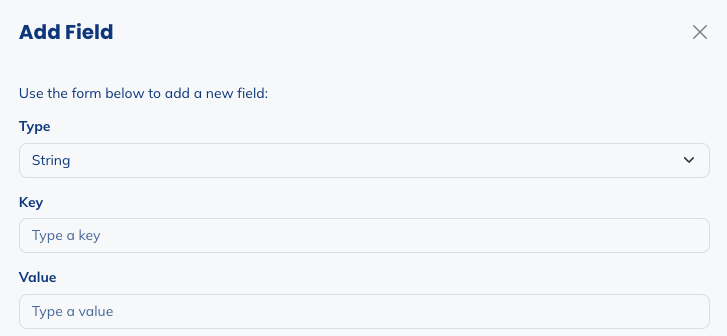
You also have the possibility to add fields if some are missing. Click on Add field.

For the added field, you will need to choose:
- the type: string, blob, date, number, money, color, image, JSON or boolean
- the key: the technical name of the field
- the value: the default value of the field
Step 3 - Design
Once all the fields you want to use in your template are added in the second step, you will have the possibility to define how your pass will be rendered on each platform. This step is split into two tabs, one for Apple Wallet and another for Google Wallet.
- Apple Wallet
- Google Wallet
Apple Wallet
The Apple Wallet tab is divided into four sub-tabs: General, Design, Data, and Semantics.
The Loyalty template looks like this:

General
In this tab, you can customize the basic information of your pass. For each field:
- You can choose common fields or pass fields you will have defined in the previous step. Only fields having the expected format will be available.
- You can add new field, if you forgot to add a field in the previous step, you can add it here and it will automatically be added to the list of fields from step 2.
- You can decide to use another value, a static value, that you are not planning on reusing in other fields.
In the following table, you'll find the fields and their description.
| Field | Description |
|---|---|
| Organisation name | The name displayed under your logo on the pass front. Typically your brand or programme name. |
| Description | A short text description used by accessibility tools and device search. Example: My Loyalty Program – Member card. |
| App Store Identifiers | Links your pass to an app in the App Store. A banner prompting the user to install your app appears on the back of the pass. |
| App's launch URL | An URL that opens your app directly when tapped from the pass. Requires an App Store Identifier. |
| User info | A metadata field for passing custom, non-displayed data alongside the pass. Useful for internal tracking or CRM linking. |
| Prevent pass sharing | When enabled, prevents the member from forwarding the pass. Recommended for named-member passes. |
Design
The Design sub-tab maps directly to the Pass Fields defined in the second step. Select the corresponding field for each visual element using the dropdown.
For the Loyalty pass, the available visual elements are: Logo text, Icon (29×29 pt, @2x: 58×58 px), Logo (160×50 pt, @2x: 320×100 px), Strip (375×123 pt, @2x: 750×246 px), Background color, Foreground color, and Label color.
On the right side of your screen, you have a preview of what your pass template looks like.
Data
The Data sub-tab lets you assign your fields to the visual zones of the pass (Header, Primary, Secondary, Auxiliary and Back). Use the Label, Key, and Value columns to control what is displayed in each zone and in what order.
For each zone of the pass:
-
You can add a field, where you will have to define different fields. Note that here, you define the design of the pass. Therefore, you will define the labels you want to show, and the value that should be displayed. These two are not necessarily from the same field you have defined in step 2.

- Key: the unique key for the combination of label and value
- Label: the label of the field, which is the part above
- Value: the value of the field, which is the part below
- Alignment: the alignment of the field
As you are defining the design of your pass template, you have the possibility to play with the different fields:
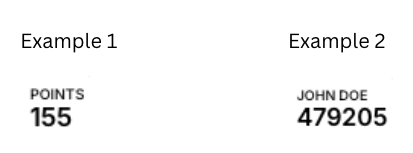
- Example 1: you could decide to put "POINTS" as the label, and the points balance as the value
- Example 2: you could decide to put the member name as the label, and the account ID as the value.
- You can delete a field from that zone of the pass, by ticking the box on the left side of the field and clicking on Delete field.
- You can edit a field by clicking on it.
The order of fields within each zone controls their left-to-right display order on the pass. Use the live preview on the right to check the layout as you configure it.
Semantics
Semantics are machine-readable metadata that Apple uses to power system-wide features such as Siri Suggestions, Spotlight Search, and proactive lock screen display. They are not visible on the pass itself — they work silently in the background to make your pass smarter.
For Loyalty passes, semantics are organised into three categories:
- Balance — the current monetary or points balance on the card: currency code and amount.
- Pricing — the value or cost associated with the programme: currency code and amount.
- Other — additional contextual data, including Wi-Fi Access (networks the pass can grant access to).
Filling in semantics is optional but recommended for programmes where balance information is central to the member experience.
For each semantic:
- You can choose common fields or pass fields you will have defined in the previous step. Only fields having the expected format will be available.
- You can add new field, if you forgot to add a field in the previous step, you can add it here and it will automatically be added to the list of fields from step 2.
- You can decide to use another value, a static value, that you are not planning on reusing in other fields.
Google Wallet
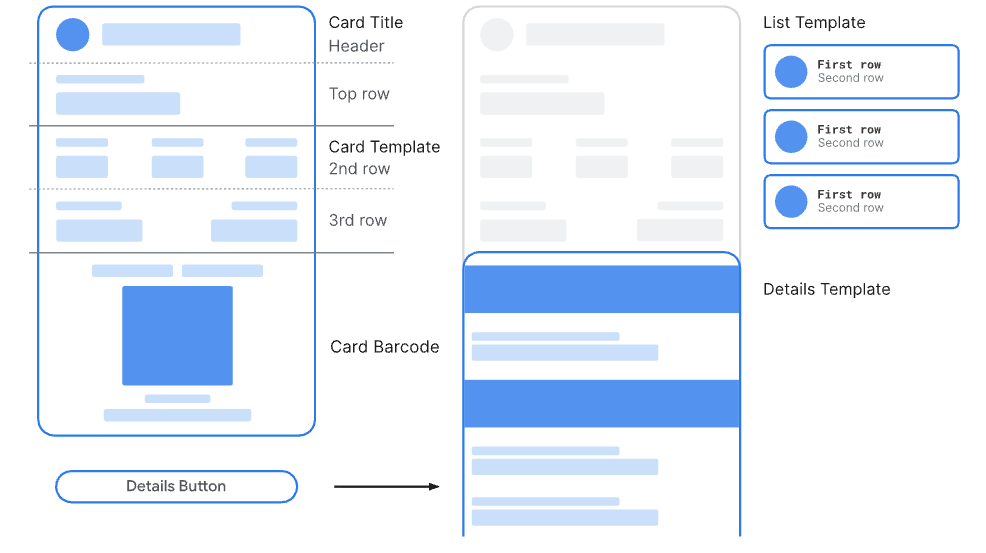
The Google Wallet tab is divided into four sub-tabs: General, Design, Common Data, and Pass Data.
The Loyalty template looks like this:
General
In this tab, you can customize the basic information of your pass. For each field:
- You can choose common fields or pass fields you will have defined in the previous step. Only fields having the expected format will be available.
- You can add new field, if you forgot to add a field in the previous step, you can add it here and it will automatically be added to the list of fields from step 2.
- You can decide to use another value, a static value, that you are not planning on reusing in other fields.
In the following table, you'll find the fields and their description.
| Field | Description |
|---|---|
| Enable smart tap | Activates NFC-based contactless redemption for terminals that support Google Smart Tap. |
| Security Animation | An animated security pattern displayed on the pass to prevent counterfeiting. Options vary by implementation. |
| Unlock Requirement | Defines whether the device must be unlocked to display or redeem the pass. |
| Multiple devices and holders allowed | Controls whether the pass can be saved by multiple users. Set to Single User for named-member passes. |
| Homepage URL | A URL displayed on the pass linking to your website or loyalty portal. Maps to a Common Field value. |
| Screenshot Eligibility | Controls whether the pass can be screenshotted on the device. |
| NFC Constraint | Defines additional restrictions on NFC redemption behaviour. |
Design
The Design sub-tab maps directly to the Pass Fields defined in Step 2. For Google Wallet, only two visual elements are configurable: the Hero image (516×168 pt, uploaded at @2x: 1032×336 px) and the Background color. Select the corresponding Pass Field for each using the dropdown.
Common Data
The Common Data sub-tab maps your Common Fields to Google Wallet's structured loyalty data model, under the Generic Data section. Select the corresponding Common Field for each slot using the dropdown.
For each field:
- You can choose common fields you will have defined in the previous step. Only fields having the expected format will be available.
- You can add new field, if you forgot to add a field in the previous step, you can add it here and it will automatically be added to the list of fields from step 2.
- You can decide to use another value, a static value, that you are not planning on reusing in other fields.
Generic data
| Field | Description |
|---|---|
| Issuer Name | The name of the organisation issuing the pass. Maps to issuerName. |
| Program Logo | The programme logo displayed on the pass. Maps to programLogo. Size: 256×256 px. |
| Wide Program Logo | An optional wider version of the programme logo. |
| Program Name | The name of the loyalty programme. Maps to programName. |
| Rewards Tier | The member's current rewards tier (e.g. Gold, Silver). |
| Secondary Rewards Tier | An optional secondary tier value, for programmes with multiple tier dimensions. |
Custom labels
| Field | Description |
|---|---|
| Account Id Label | The label displayed above the account identifier on the pass. |
| Account Name Label | The label displayed above the account name on the pass. |
| Rewards Tier Label | The label displayed above the rewards tier on the pass. |
| Secondary Rewards Tier Label | The label displayed above the secondary rewards tier on the pass. |
Pass Data
The Pass Data sub-tab maps your Pass Fields to member-specific data displayed on the Google Wallet pass, organised into three sections:
- Loyalty Card Data — account-level identifiers: Account Identifier (
accountId) and Account Name (accountName). - Loyalty Points — the primary points balance: Label (
pointsLabel), Balance Type, and the points value (points). - Secondary Loyalty Points — an optional secondary balance (e.g. a second currency or tier points), with its own Label, Balance Type, and value.
App Links allows you to provide information about a companion app, across three sub-tabs — Android, iOS, and Web — each with the following fields: App logo image, App URL, Title, and Description.
Other allows you to enrich the back of the Google Wallet pass with additional content:
- Messages — contextual messages displayed to the pass holder.
- Images — additional images displayed on the pass.
- Info Texts — informational text blocks (e.g. terms and conditions, programme details).
- Links — external links displayed on the pass (e.g. to your loyalty portal or app).
For each field:
- You can choose pass fields you will have defined in the previous step. Only fields having the expected format will be available.
- You can add new field, if you forgot to add a field in the previous step, you can add it here and it will automatically be added to the list of fields from step 2.
- You can decide to use another value, a static value, that you are not planning on reusing in other fields.
Always preview both the Apple Wallet and Google Wallet versions of your pass before publishing. The live preview on the right side of the screen updates in real time as you configure your design.
Step 4 - Relevance
Relevance defines when and where your pass surfaces automatically on the member's lock screen, without requiring a notification to be manually triggered.
For Loyalty passes, location-based relevance is particularly powerful — surfacing the pass automatically when a member is near your store creates a seamless in-store experience and drives redemption.
Locations
Add GPS coordinates to trigger the pass on the lock screen when the member enters a defined radius around a location. For Loyalty passes, the most relevant use cases are:
- Your store or point-of-sale locations
- Event venues or partner locations where the card can be used
Apple and Google Wallet allow up to 10 locations per pass.
On Apple Wallet, Loyalty passes use a compact pass style, so this trigger typically activates within about 100 metres of the location — see Scope of location-based relevance for details.
Beacons (Apple Wallet only)
BTLE beacons allow ultra-precise, indoor triggering that GPS cannot achieve. If your stores have deployed Bluetooth beacons at entrances or checkout points, you can configure the pass to surface automatically when the member's device detects a specific beacon.
Configure each beacon with its UUID, and optionally its Major and Minor values for more granular targeting.
Beacon-based relevance requires physical beacon hardware to be deployed on-site. Coordinate with your store operations team before configuring this option.
Step 5 - Barcode
The barcode is the scannable element that connects your digital loyalty card to your in-store or online redemption infrastructure. See Choosing a barcode format for a comparison of formats and how to pick the one that matches your existing scanning infrastructure.
| Format | Description | Recommendation |
|---|---|---|
| None | No barcode displayed on the pass. | Only if your redemption is NFC-based exclusively. |
| QR Code | 2D matrix barcode. High data capacity, fast scanning, widely supported. | Recommended for most loyalty implementations. |
| PDF417 | 2D stacked barcode. | Use if your redemption system requires PDF417 specifically. |
| 1D (Code 128) | Linear barcode. Low data capacity. | Suitable for simple loyalty card implementations with short codes. |
| Aztec | 2D matrix barcode. Compact and efficient, native to Apple Wallet. | Suitable if your scanning infrastructure supports it. |
QR Code is the most universally supported format for loyalty passes. If your existing loyalty infrastructure uses a specific barcode format, match it here to ensure compatibility with your scanners and POS systems.