Making product recommendations
Powered by the technology of our partner Raptor, Actito allows you to make product recommandations inside of your email campaigns.
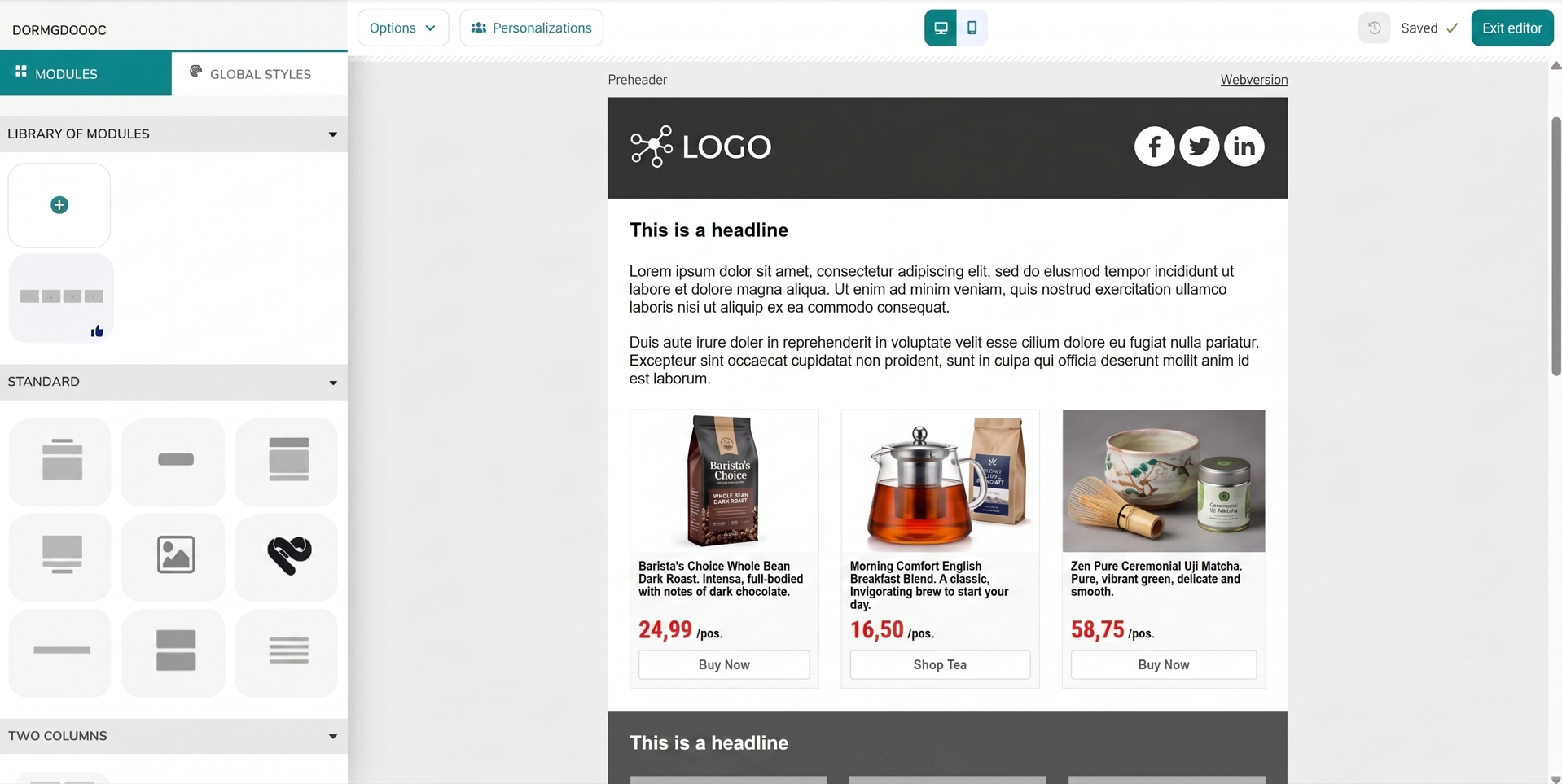
Product recommendations allow marketers to deliver personalized content to their audience by dynamically selecting products based on customer data, behavior, and business rules.
By delivering relevant product content at the right moment, you increase engagement, conversions, and average order value.
Product recommendations modules are an optional module that require an additional set-up.
If you are interested by this feature, please contact your account manager.
The integration with Raptor allows recommendations based on profile profile, meaning the displayed products can differ from one profile to another.
Recommandations strategies
Actito offers you three categories of recommendation strategies:
- Personalization based on a customer behavior
- Trending products based on all customer's behaviors
- Products based on similar products/feeds
Personalization based on a customer behavior
Cross-selling items from basket
Recommendations based on the last basket. The recommended products are not products from the basket itself, but products that are often bought together with the products in the basket.
If there are not enough products related to the products basket to display, the fallback will display the "products you have recently seen" in recommandation then the top selling.
Recently seen items
Recommandations based on products viewed by the customer. The history of visited products offers help make the campaigns more effective by personalizing the content sent to each customer and encouraging profiles to complete a purchase of items they have viewed earlier.
For this strategy, you will not have a preview in the editor as it is based on profile history. To have a preview, you will have to send you a test message in step 4 of campaign creation.
There are no fallback products if the profile is unknown by Raptor.
User-Related recommendations
Products are identified as the best value for the customer according to his history.
Therefore, products displayed depend on the last event:
- If purchased, products displayed will be related to the products purchased
- If visited or in basket, products displayed will be products in the same category
The fallback is the top selling.
Trending products based on all customers' behaviors
Popular items
Give each client up to date information about items that are popular and relevant to many visitors.
Trending items in a category
Give each customer up to date information about items that are popular and relevant on a specified category, by providing the ID of this category.
Trending items in a brand
Give each customer up to date information about items that are popular and relevant on a specified brand,by providing the ID of this brand.
Products based on similar products/feeds
Items similar to the given product
The strategy will return items that are often viewed along with the given product, i.e. similar/lookalike items.
Items from a merchandising campaign
To use this strategy, you will need to have a Raptor account you can access.
Merchandising campaigns are customized feeds used to select what products to amplify manually.
The product displayed will be the top products of the chosen merchandising campaigns. However, you can manually override the top product selection, by indicating the IDs of preferential products.
Select specific items
This strategy does not rely on any algorithm as it lets you manually select a list of products displayed for all profiles by providing product IDs for each column of the block.
Creating product recommandation content
Before starting the creation of your campaign, you will need to define a layout for the product content.
This layout is managed by our team directly in Raptor. Meaning that the layout will be the same for all your campaigns (one layout per integration).
To add product recommandation content to an email, create an email campaign using Actito standard templates.
Then, from the library of modules, select a module from the category "Product recommendation" in the Actito library and add it to your email.
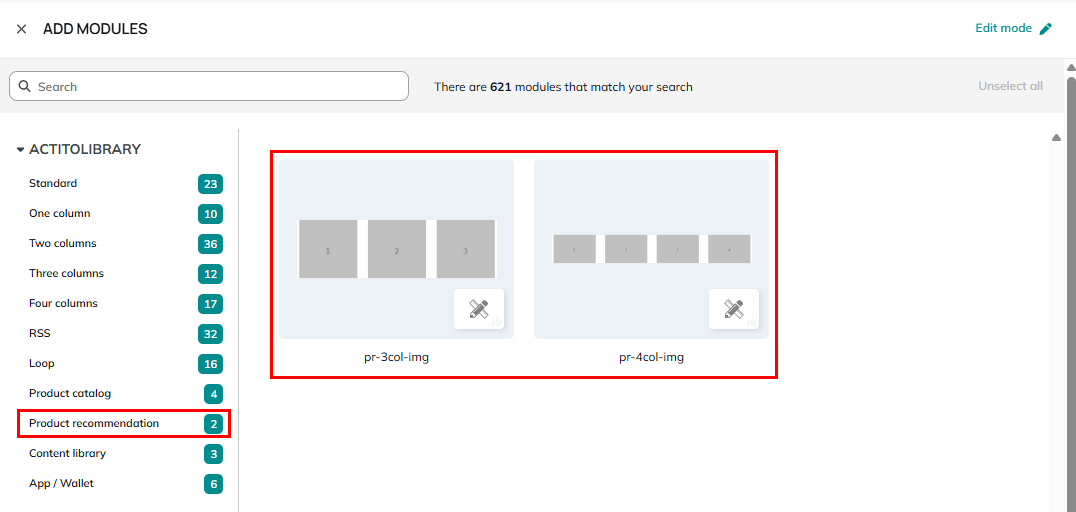
This category will only be available once the integration with Raptor is set up on your license.
Once the block is added, you can select the strategy by clicking on the wheel icon at the top left of the block.
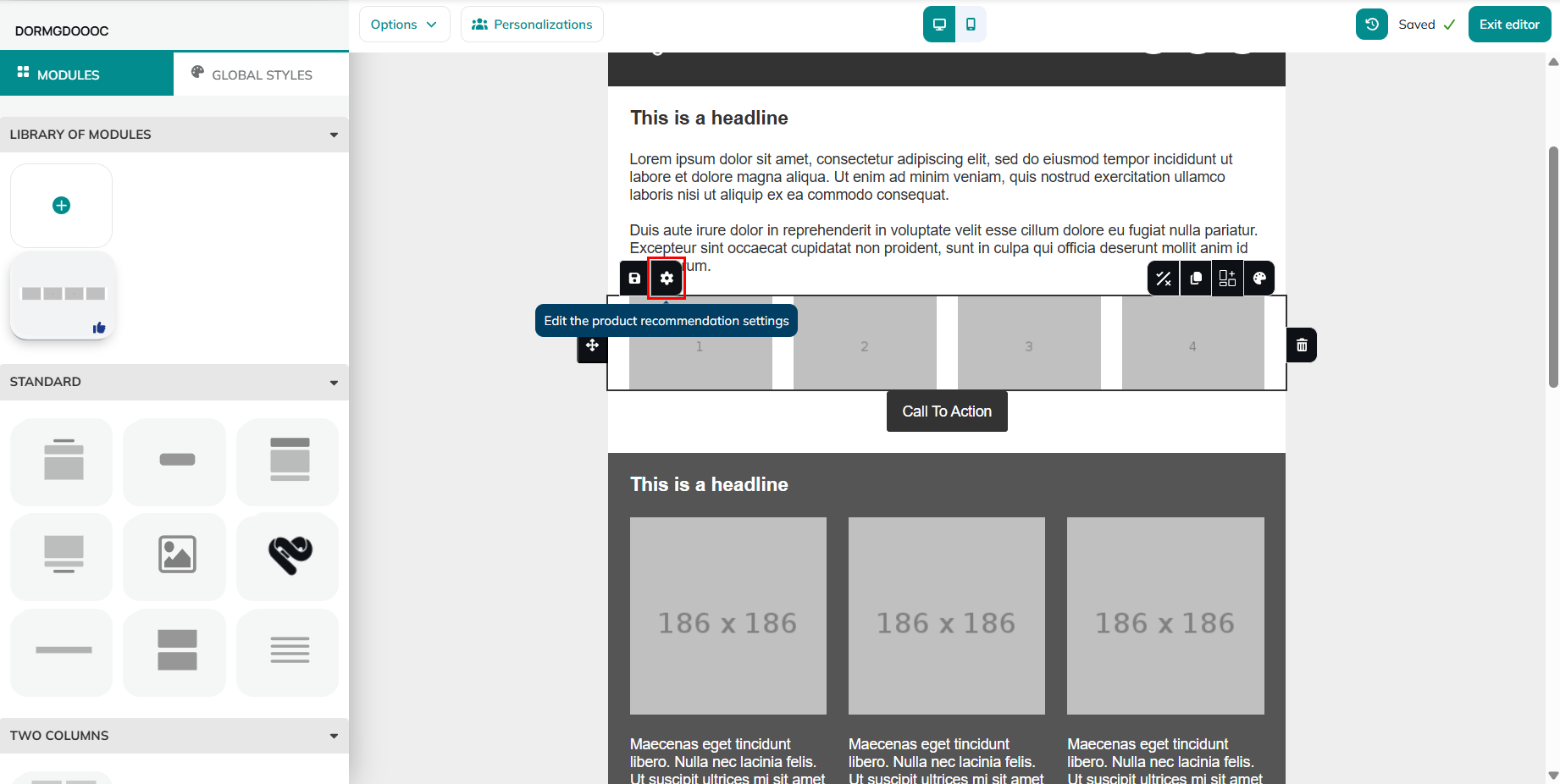
All additional parameters to be encoded come from your product flow, which is imported into Raptor (you can also push these feeds into Actito and thus use them with profiles, which makes it easier to define the parameters)
A popup window will open to let you edit the product recommendation settings:
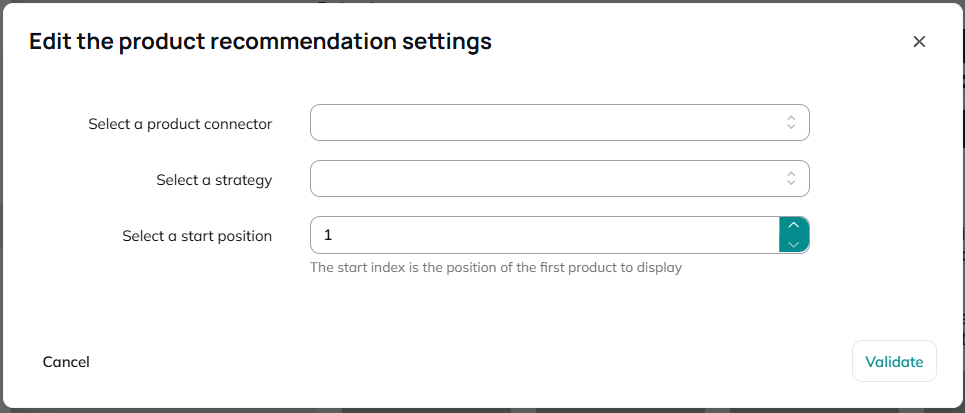
- Select a product connector: select the connector you want to use, from the dropdown menu.
A connector is equal to a Raptor account and a flow. If your brand operates in several countries, you will have one flow by country (and so, one connector by country).
-
Select a strategy: choose from the 9 strategies offered by Actito.
-
Select a start position: allows you to set the range of products displayed by default. The default value is 1, meaning that the first, second and third most popular products of the strategy will be displayed.
To present more than three or four products, you can duplicate the module, and change the start position of the second module : Module 1: Starting position = 1 → products 1, 2, 3 Module 2: Starting position = 4 → products 4, 5, 6.
-
(Additional parameters): Depending on the strategy, you may need to define additional parameters (i.e. the brand ID for trending items in a brand). Parameters to enter here are free text fields (no dropdown values). Which means that values must be entered manually or via personalization.
- Using Personalization in fields: You can dynamically populate parameters using Actito data (e.g. For an Orders table contains product categories, you can map the data with a category ID (from Raptor) to retrieve the last purchased category). Using a personalization will display broken image in the preview because the personalization is unresolved Images will render correctly only once personalization is resolved (in test message or sending).
Because, the field to fill in free text, no validation is performed. This means that incorrect values will not return an error message. However, you can spot an issue if you see empty block (white screen in editor) or broken image preview.