Form participations
After publishing your form and sharing it with your profiles, it is possible to retrieve a list of their participations. You will be able to combine information related to profiles on the one hand with their answers on the other hand.
There are two options to view the participations to an Actito form:
List of participations
The "List of participations" module is especially dedicated to displaying participations (Hub > Forms & Pages > List of participations).

Forms & Pages
Displaying participations is also possible through the main form management module (Hub > Forms & Pages > Manage forms and pages, or via the quick menu).

To do so, go to the "Active" tab.

Select the form with which you want to interact and click on the View participations button.

If you display the participations via the "Manage forms and pages" module, you will not have to go through the first step of the walk-through described below.
Step 1: Select survey
By using the "View participations" module, you will have to start by selecting the form whose participations you want to display. Select your form among the list of all existing published forms.
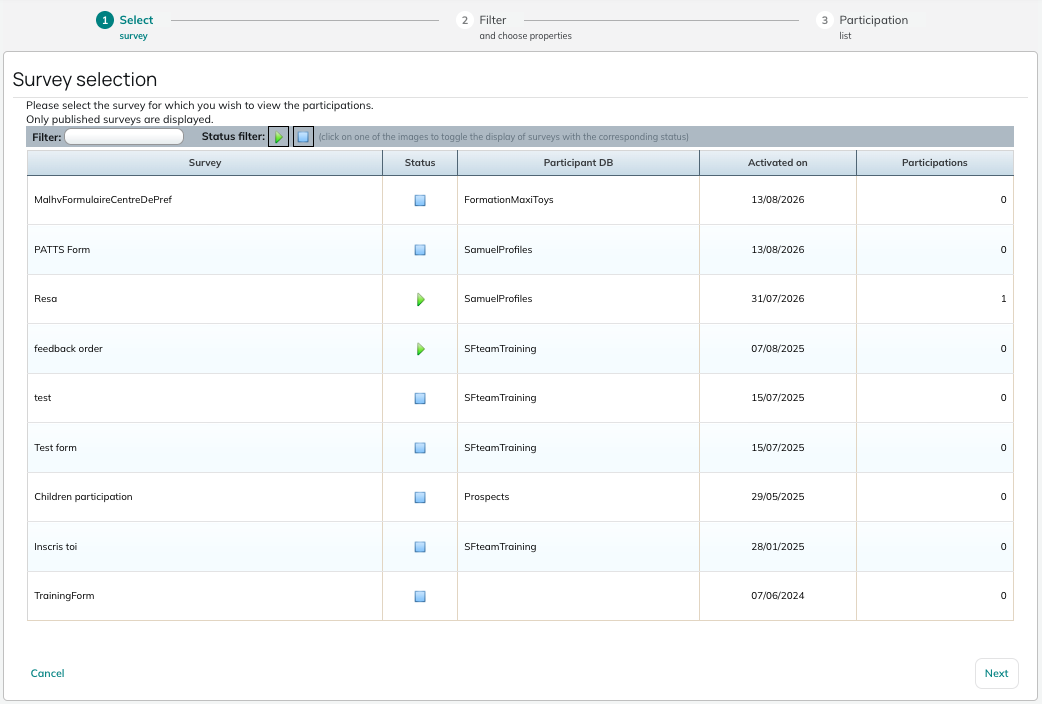
Two search options stand at your disposal to find your form:
- "Filter": It lets you search the name of the form
- "Status filter": This allows you to only display active forms
 or closed forms
Step 2: Filter and choose properties
Filter participations
First, you will be able to define a set of criteria in order to filter the participations that must be displayed.
On the one hand, these criteria may be based on the participation to the survey, either on technical information (e.g. participation date or source) or on the answers given to specific questions.
On the other hand, if your form is linked to a profile table, you will be able to apply a filter on information pertaining to this profile table, whether it be profile attributes (including subscriptions and segmentations) or interaction information for e-mail campaigns (e.g. last opening or last click). To this purpose, you will need to select "Participations linked to a profile table" in the drop-down menu at the top of the screen.
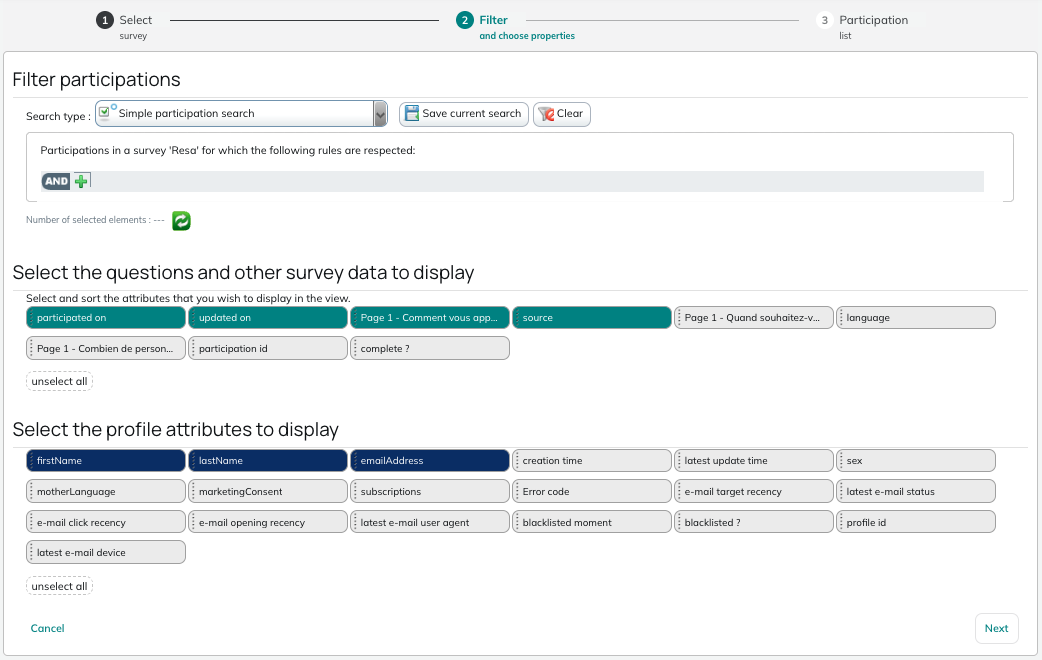
The logical operator between the rules is AND (all criteria must be met).
Select the questions and other survey information
Next, you have the possibility to choose which form information to display. It may be technical information (e.g. participation date or source) as well as the answers given to specific questions.

Select the profile attributes
The last step consists in selecting which attributes (including e-mail interactions) to display in your list.

Step 3: Participation list
After clicking on Next, you will obtain a table showing all the participations to your form that match the chosen criteria, with each previously selected element represented in the columns.
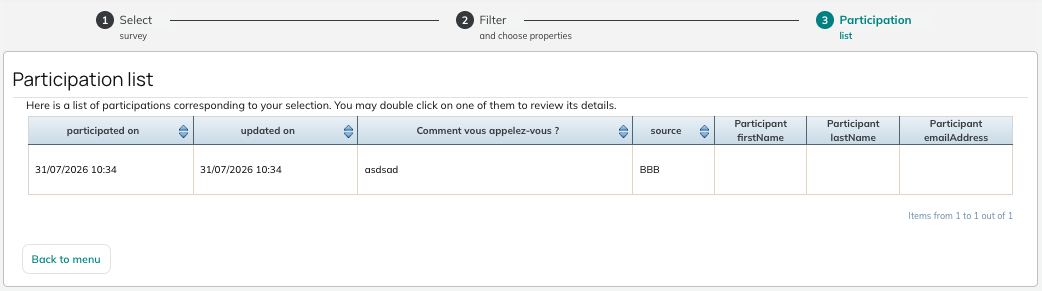
This module is especially used to create a table combining profile attributes with question answers.
When you need to select profiles for your campaigns on the basis of their participation to a form or according to their specific answers, you will be able to do it via the targeting module.