Saved targetings
In Actito, a targeting can be saved and reused as many times as needed, which avoids redefining and reconfiguring the same targeting over and over. It is especially useful to represent groups of profiles sharing common characteristics.
A saved targeting and a segmentation may look similar, but they differ fundamentally. A profile cannot be manually removed from a saved targeting (whereas it can be added to a segment), and reports do not show membership of a targeting — so profiles cannot be tracked on that basis, unlike segmentations, which are mentioned and tracked in reports. In short, creating a targeting amounts to creating a filter, not a stable group of profiles.
A target is dynamic by nature: it is recalculated each time it is used. So a profile that met a targeting's conditions yesterday may, today, no longer match — even though those conditions haven't changed.
Defining and saving a targeting
To define and save a targeting, go to the Saved targetings app (Apps > Profiles > Saved targetings).

You can also define and save a targeting via the Profiles app.
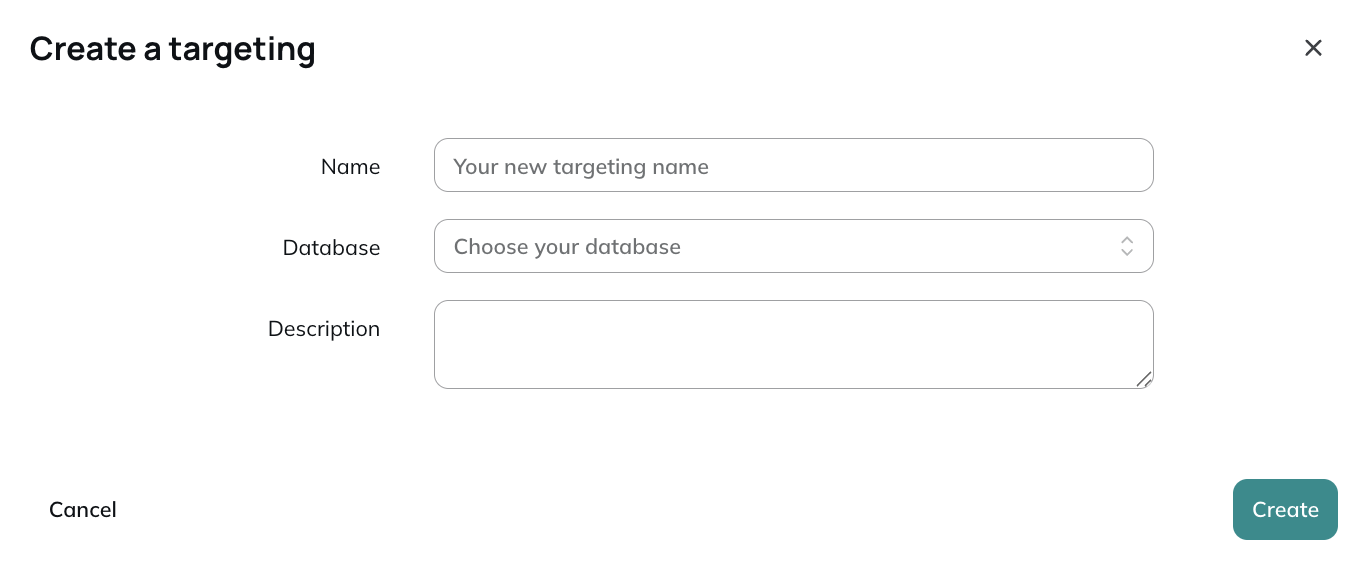
First, enter the name of the targeting and its database: the name will make it easier to search for, identify and reuse. The Description field is free, for any information you find useful. Then click "Create".
The module definition screen then opens: there you configure the criteria to save. Be as precise as you like; the only limit is 50 modules per targeting. To understand how they work, see the chapter on targeting modules. You can also limit the number of targeted profiles.
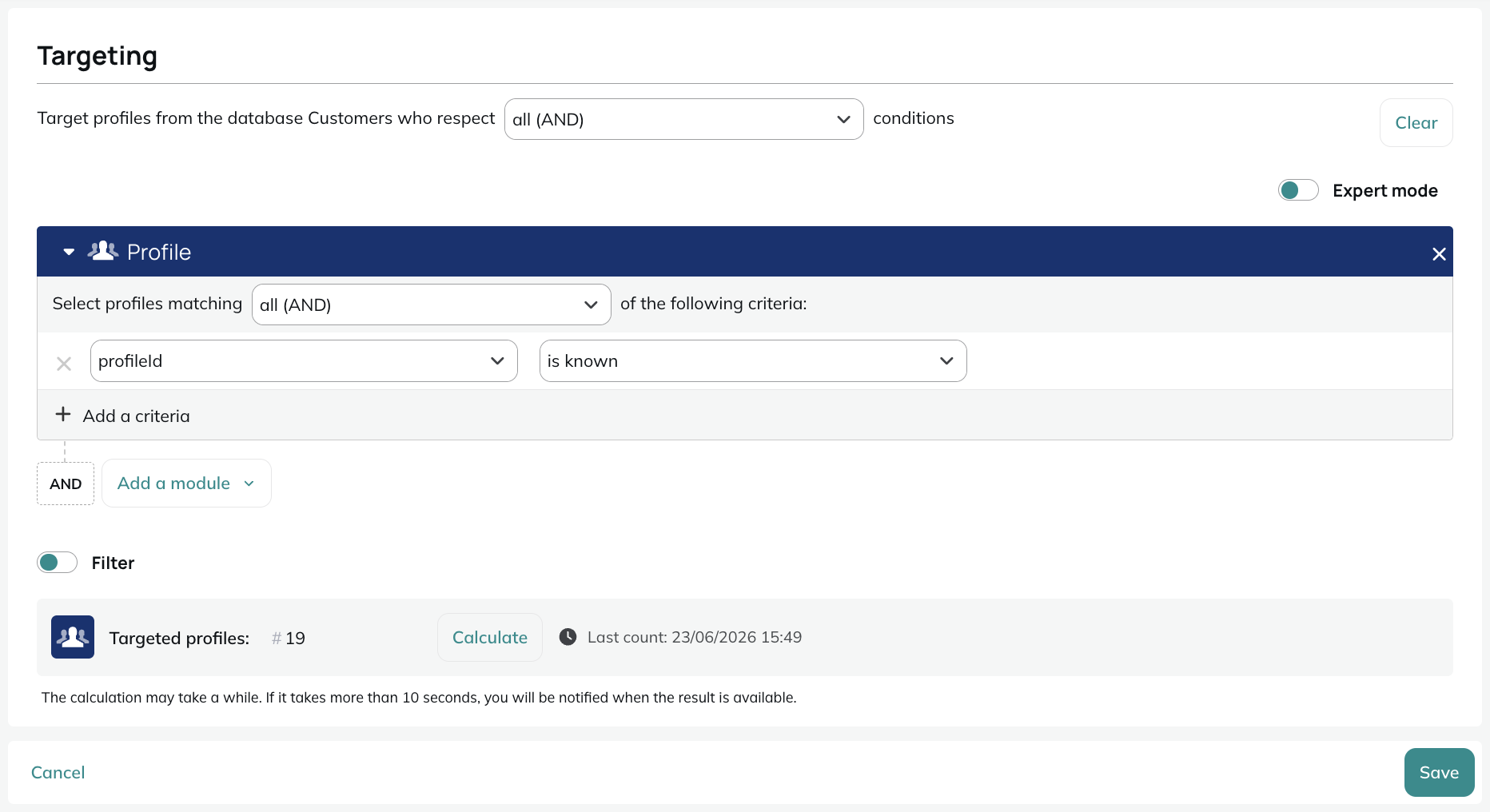
Once all your criteria are configured, click "Save": your targeting is ready to be reused at any time.
You can always edit, copy or rename it from the Saved targetings app.

Using a saved targeting
A saved targeting can be used in SMS, email or paper campaigns, in scenarios, or as the basis for a more complex targeting.
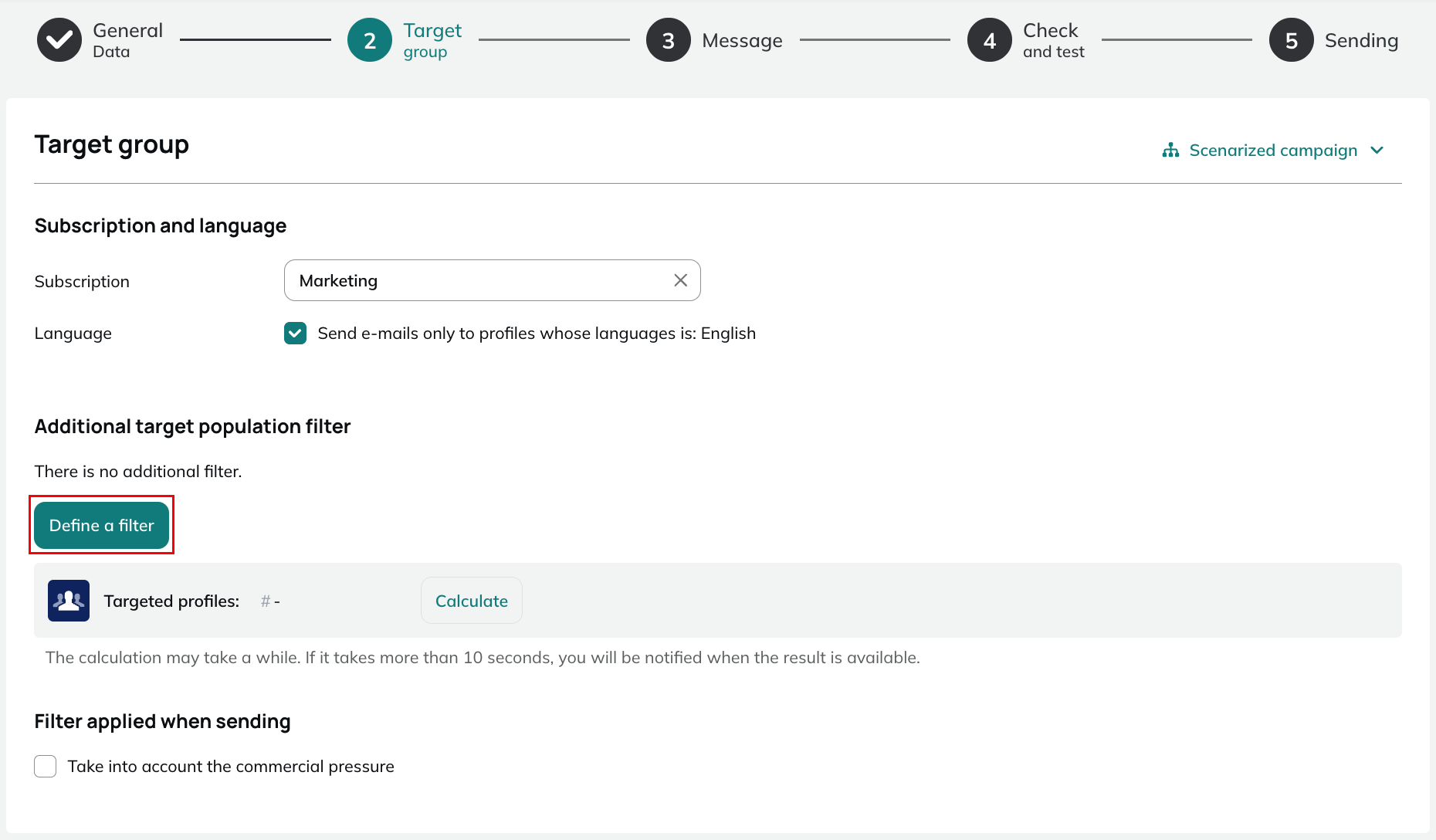
To apply it to a campaign, click "Define the filter" at the second step of campaign creation. The example below is an email campaign, but the step is similar for all campaign types.
Then add a Targeting module, which selects the profiles matching the conditions of the chosen targeting ("are") or, conversely, those that do not ("are not"). Once the module is configured, click "Validate".

Updating a saved targeting
To modify a targeting, select it and click "Edit". You can then adjust the criteria; your changes are only saved after you click "Save".
Updating a targeting has an impact everywhere it is referenced (scenarios, continuous campaigns…).

Updating a targeting must therefore always be done with great care.
For example, imagine a saved targeting for your young Parisian customers, with two criteria — age (under 25) and address (Paris) — used in five transactional campaigns and three scenarios. If one day you wanted to launch a one-shot campaign for Parisians under 20 and, instead of creating a new targeting, you modified this one, you would also affect the five campaigns and three scenarios that rely on it.